  Procedure to download the notice of (re)assessment from the CRA |
The procedure below is in accordance with CRA's prescribed rules and regulations relating to their T2 Auto-fill secure service, available with T2 certified software products, that lets business owners and authorized representatives download information from the CRA to their tax preparation software.
What you will need to use this service
Please ensure that the following conditions are met prior to using this service:
Business owner: To use this secure service you must be signed up and registered with CRA's My Business Account. Authorized representatives for a business owner: If you prepare a tax return for a corporation, you need to take the following steps:
Become authorized to use T2 Auto-fill for the corporation. To get this authorization, first get a RepID through the Represent a Client portal. The RepID identifies you with the CRA. Give your RepID to your client so they can authorize you as their representative through My Business Account or by filling out and sending Form RC59, Business Consent, to get online access.
Authorized representatives: You must have a CRA or Sign-In partner credential and a valid RC59, with level 1 (or higher) authorization for online access on file with the CRA for your client. For more information, see the CRA's About Represent a Client web page (in particular, see items 5 and 6). The time must be set correctly on your computer. The CRA has a time limit for completing the transaction. A discrepancy of more than five minutes between the time on your computer and the correct time is enough for the CRA to invalidate the transaction. The time zone must be set correctly on your computer. This is because UTC time is used for the transaction.
How to use this service
To download the notice of (re)assessment (which is available after successfully filing the return electronically), in the Client List screen, select the client for which you want to do the download.
A client can be selected by positioning the cursor on that client.
Select CRA Notice of (re)assessment from the Efile menu...
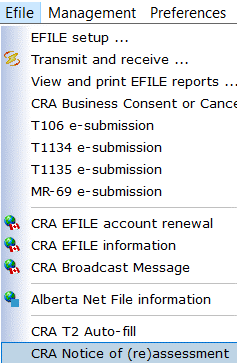
OR, click the CRA Notice of (re)assessment icon on the Client List toolbar.

If the menu item or toolbar icon is grayed out, it means that you have selected a client that does not have the Processing status in the Client List of EFILE acknowledgement OK. Please deselect this client and try again.
Follow the steps outlined below in the section "Downloading Notice of (re)assessment from the CRA". The keyword group Progress "Assessment received" in the Data Entry screen, contains the path of the archived file of the Notice of (re)assessment.

Downloading Notice of (re)assessment from the CRA
A window will open that lists the name and business number of the selected corporation.
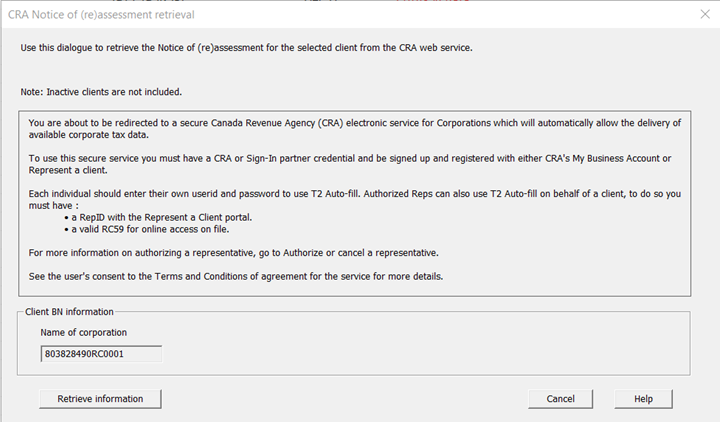
Click the "Retrieve information" button at the bottom of the window to start the download process.
Your web browser will open the CRA's login page.
To access the site, select one of the following methods:
Use the same CRA user ID and password that you would use to log in to the CRA's "Represent a Client" page. Log in via one of the CRA's sign-in partners using the same sign-in information you would normally use for that online service (e.g., online banking).
Note: You will only be able to access data for those clients who have previously given you access. This can be done by completing and filing a RC59 form for each client or by having your clients sign-in to the CRA's "My Business Account" service and use the "Authorize my representative" option. For more information on both of these methods,
see the CRA's About Represent a Client web page (in particular, see items 5 and 6). Just sending in a RC59 may not be enough. There are several specific requirements. For example, you must "Register your Business Number (BN) with the Represent a Client service before your client submits Form RC59".
For the first sign-in only, you will have to agree to the CRA's terms and conditions of use. Follow the on-screen instructions.
Note: If you get error message number 00012, it means that the time/date is not set correctly on your computer.
Once the download process starts, you will be logged out of the CRA's site, and any web pages opened during the process will be automatically closed.* -
The Results log window will open and show the progress of the download.
Note: If any problems occur during the download, they will be displayed in this window.
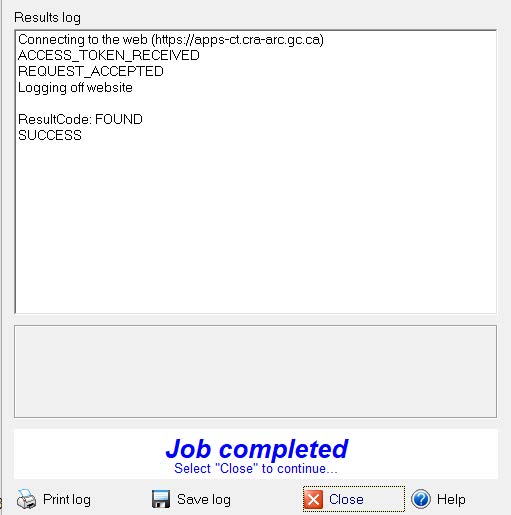
After the download has completed, click the Close button to close the Results log window.
*CRA requirement.
June 15, 2022
|