  Procedure to download tax data from Revenu Québec |
-
When you are on the Data entry screen, select the option T-slips from RQ in the right-hand side display.
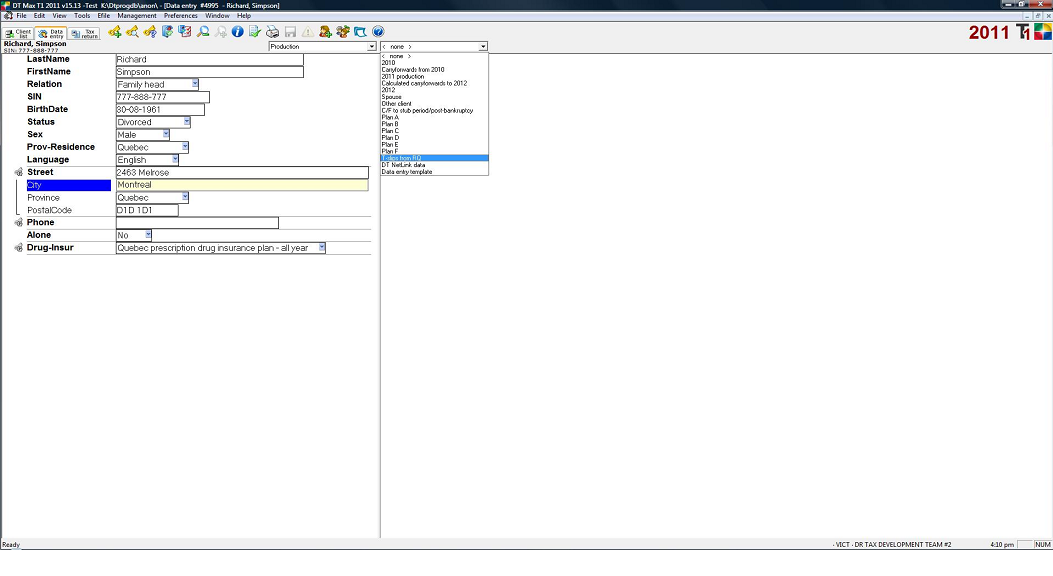
-
Then, in the RQ T-slip information retrieval window, enter your client's 8-digit RQ download code or leave the field blank if you have a valid MR-69 form already submitted to Revenu Québec.
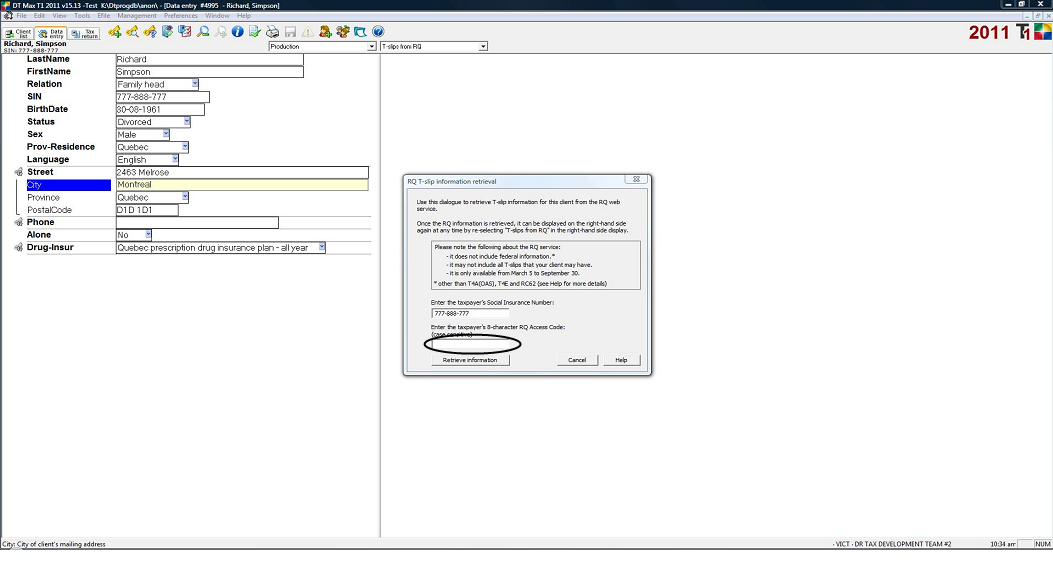
Note: If you have already entered the RQ Download Code beforehand using the keyword RQ-DownloadCode , you do not have to follow this step since the RQ Download Code, entered using the keyword RQ-DownloadCode , is automatically entered in the
RQ T-slip information retrieval window.
-
Finaly, click on the Retrieve information button.

When you see the downloaded data appear on the right-hand side of the screen, simply mark ([F5] or right-click and select the option Mark) and then copy [Alt+C] all or any data displayed there to the left-hand side (production data).
If your client has too many RL-18 slips, you will receive a warning telling you that they must be entered manually (the size of data exceeds DT Max's storage capacity).
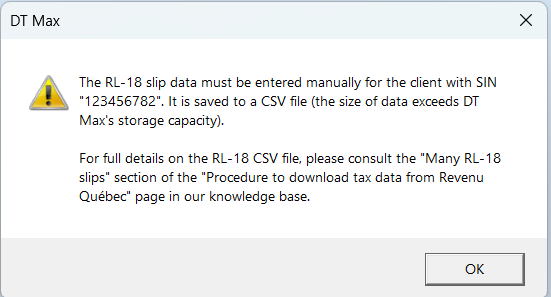
In such cases, DT Max will save the RL-18 slip data to an external CSV file and include a link to that file in a keyword in the TDD-RLSLIP keyword group. This file can be opened using any spreadsheet software (e.g., Excel or Google Sheets).
You can simply enter the total amounts in DT Max that you have calculated using this spreadsheet.
-
Following the download, the TDD-RLSLIP keyword group will be displayed on the right side of the Data Entry screen along with the other tax data downloaded from Revenu Québec (Right-hand side display "T-slips from RQ"). Copy the TDD-RLSLIP keyword group to the left-hand side of the Data Entry screen.

-
The keyword TDD-RL18-FileName contains the path of the archived CSV file. Click the yellow button indicated below to open it.
 
This file provides data for RL-18 slips that could not be displayed in T-Slip "T5008/RL-18" keyword groups. It will have the .CSV extension, generally recognized by most spreadsheet software on the market.
If this is the case, by clicking on the yellow button the spreadsheet software should normally open with the received data, ready to receive your calculations. It is then preferable to save any modifications or additional calculations to a file in the native format of this software (e.g., if Excel, save as an .xls file).
On the other hand, if your spreadsheet software does not recognize the .CSV extension, or if you use online software, you will need to use the function that allows you to import "comma-separated data" type files (see the documentation for your spreadsheet software; e.g., if you are using Google Sheets, you will need to open it and import the .csv file by clicking on File -> Import).
-
Enter the data from the RL-18 slips into DT Max. You can simply enter the total amounts in a T-Slip "T5008/RL-18" keyword group. The RL-18 slip reports the amount paid or credited for securities that were disposed of or redeemed during the year indicated. These transactions may be on account of income or capital. For more information, see Interpretation Bulletin IT-479, Transactions in Securities. You can get a copy of this bulletin by going to canada.ca/cra-forms.
-
Note: the amount in box 20 – cost or book value may or may not reflect your client's adjusted cost base (ACB) for the purpose of determining the gain or loss from the disposition of the security. You are required to make the adjustments, as needed, to the amount indicated in box 20, at the time of determining and reporting your client's gain or loss from the disposition.
If the cost of acquisition is not shown on the RL-18, it must be determined from other statements such as the accompanying statement from the investment company or broker.
-
The keyword DataEntered-RL18 is used to confirm that you have entered the RL-18 slips data in DT Max. The default option is "No". A warning telling you that you did not confirm the input of the RL-18 slips data will be displayed until it is changed to "Yes".

March 11, 2025
|