This document describes the various steps involved in electronically filing corporate tax returns prior to 2013 through the Internet filing option.
Step 1 - Completing the federal T2 efile setupTo access the federal T2 efile setup, select EFILE Setup from the Efile menu. DT Max will display the Federal T2 menu by default. Select which corporate returns you wish to transmit and your preferred method of transmission. You may choose between manual or automatic. The manual submission method requires you to complete the CRA web page yourself whereas the automatic has DT Max handle the entire transmission automatically. When selecting manual you will be prompted to enter your CRA EFILE Online number. This number is required in order to properly complete the T183 CORP Form. When selecting automatic you will be prompted to enter your CRA EFILE Online number and password. Once you have completed the setup click Save. Please note that you may still transmit a corporate return, if you have not registered for a CRA EFILE Online number, by entering the corporation's web access code upon accessing the CRA web page. An entry for the CRA EFILE Online number and/or password is not required within the efile setup when transmitting through a web access code. To override your default settings, you may enter the keyword Efile-Federal within a particular client's file. Please also note that all efile eligible corporations with gross revenue in excess of $1 million and filing returns with tax years ending in 2010 or subsequent will be required to Internet file their return. The only exceptions are:
Gross revenue in excess of $1 million will be determined by the total of lines 8299 (Total Revenue) and 9659 (Total Farm Revenue) of Schedule 125. 
Step 2 - Reviewing the eligibility requirements and legal obligationsPrior to transmitting a corporate return, you must determine whether or not it is eligible for efile. Should a return be ineligible, DT Max will mention it in the Notes and diagnostics page. You may also visit the CRA's Web site for an up-to-date list of the exceptions and restrictions as well as go over your legal obligations. 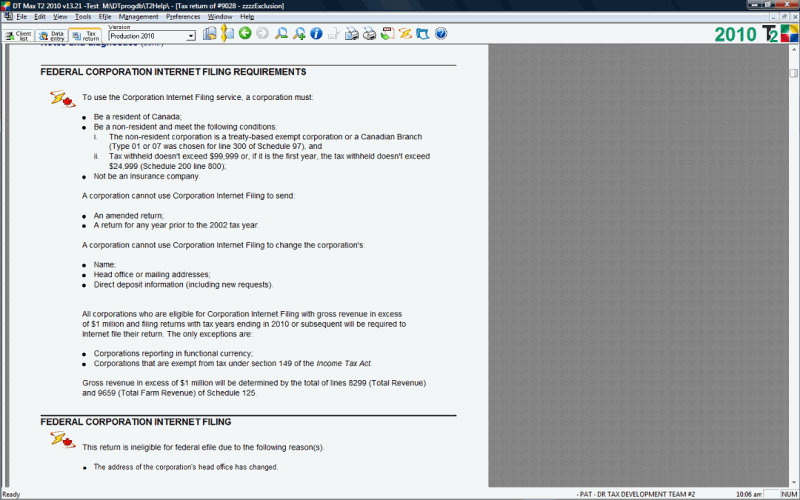
Step 3 - Obtaining client consentPrior to transmitting a return, you must print federal form T183 CORP - Information return for corporations filing electronically and have it signed by your client. If this form was not generated, please refer to the Notes and diagnostics page to determine why the return was deemed ineligible for efile (step 2 above). Step 4 - TransmittingThe transmission of a corporate return will differ depending on whether you selected the manual or automatic submission method. To transmit a corporate return, click the Efile icon, or select Transmit
and receive from the Efile menu. Choose Current client, Federal, click Continue, and agree with the conditions specified by CRA. 
Please note that although the CRA will only allow files to be transmitted one at a time, DT Max does have the capability of generating multiple ".COR" files at once. To do so, simply mark the clients in question (using either the spacebar or the [F5] key) in the client list. Once completed, select Transmit and receive from the Efile menu and you will notice that the option Marked clients that are eligible for efile will be automatically selected. Under the manual method clicking Continue will generate an efile
transmission log. This log will display the creation of any corporate files
that are ready for Internet filing. All files will be named "XXXXXXX.COR"
where the "XXXXXXX" denotes the DT Max client number (as specified
within the DT Max database). These files will be saved within a subdirectory
of the database. This subdirectory is named E_OUT. 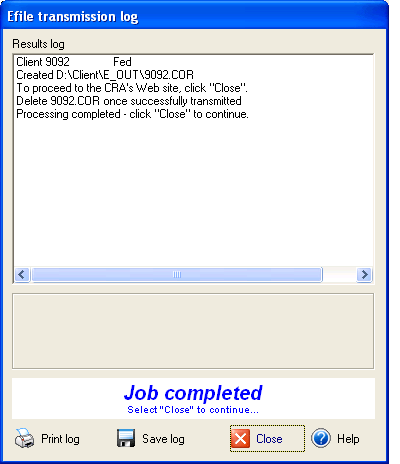
Clicking Close will bring you to the T2 Internet filing menu. This menu allows you to connect to the CRA's Web site where you will have to complete the identification area and attach the file (making sure to include the ".COR" extension). 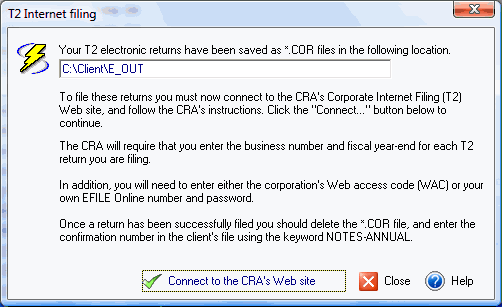
The identification area will require:
If you are already registered to efile personal tax returns, then the same EFILE Online number and password can be used to transmit corporate returns. Please note that when accessing the CRA's Web page and attaching the file, you will be required to input its location and name. This information can be obtained from the efile transmission log. Alternatively, you may copy the location from the T2 Internet filing menu (seen above) and paste it onto the CRA's Web page. Once completed, you will then only have to manually enter the name of the ".COR" file. In the example above, the location and file name would be specified as follows: Any file submitted under the manual method will be processed in real time, meaning that the acknowledgement will be generated almost instantly. Once a corporate return has been successfully transmitted, you should delete the .COR file from your E_Out folder. This can be accomplished through Windows Explorer. You should also note that the processing statuses of transmitted returns will not be automatically updated by DT Max. They can be updated manually through the DT Max option Move statuses forward found in the Management menu by selecting Change statuses and selecting Efile acknowledgement, or using the Progress keyword. It is highly recommended, for your own records, that you print and retain any acknowledgment. The automatic method, upon clicking Continue from the Transmit and receive menu, will complete all of the steps above. The program will populate the required fields, transmit the file in question, and update the status of your client to efile acknowledged. An EFILE report may be viewed and printed by clicking on View and print EFILE reports from the Efile menu. An EFILE report will be available for viewing only if the client has a 2012 taxation year end or later. If the client's taxation year end is prior to 2012, then the client's EFILE transmission log can be used to keep track of the client's progress. October 20, 2015 |

